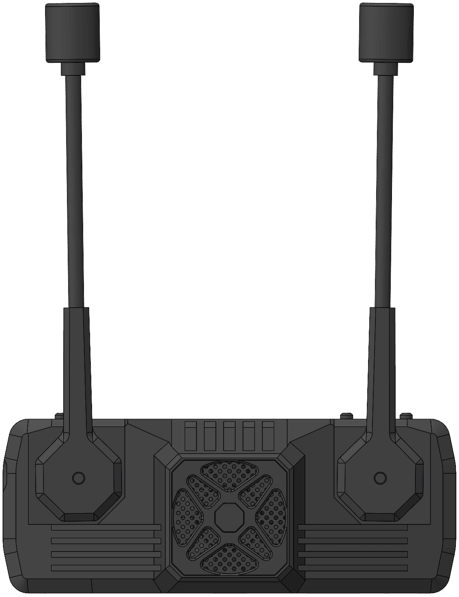
Product Description

Item List

Diagram
Name
Quantity
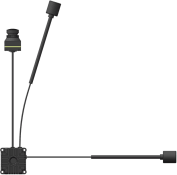
S30 figure 02
Air Unit
1
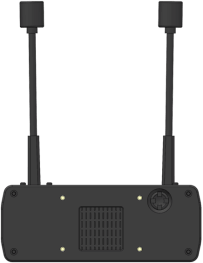
S30 figure 03
Ground-side
1
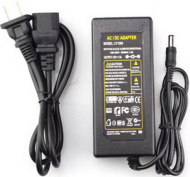
S30 figure 04
Ground-side power supply cable
1
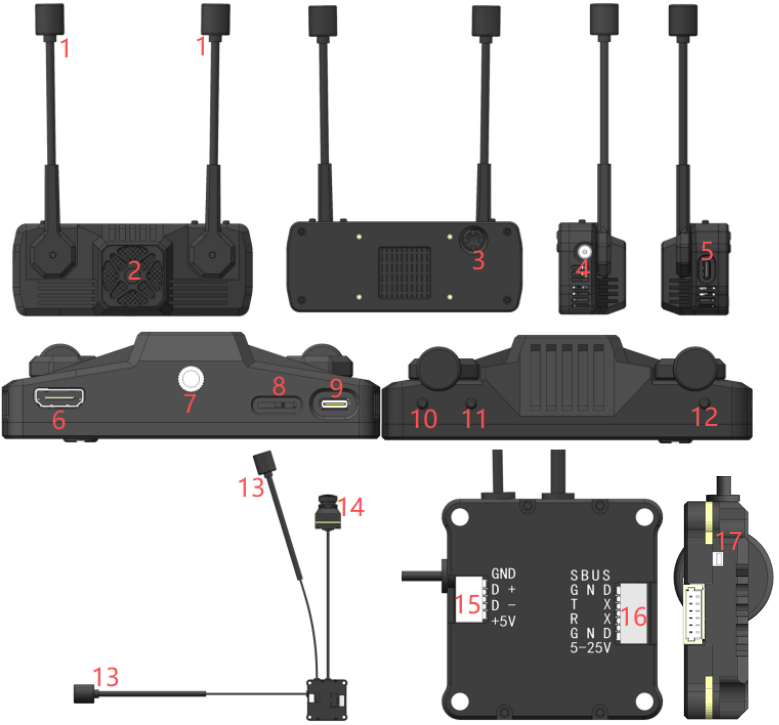
S30 figure 05
1. Antenna
10. Return Button
2. Cooling Fan
11. Recording Button
3. 5-Way
12. Frequency Sync Button
4. Power Port
13. Antenna
5. Type-C UART Interface
14. Camera
6. HDMI
15. USB Debug Port
7. Mounting Bracket
16. Power Supply, Data Transmission & SBUS Ports
8. TF Card Slot
17. Frequency Sync Button
9. Video Type-C Output
USB Debug Interface
PIN1
PIN2
PIN3
GND
USB_DN
USB_DP
Power Supply, OSD Data Interface
PIN1
PIN2
PIN3
SBUS_TX
GND
UART_TX
SBUS Send Signal
Negative
Connect to Flight Controller RX Transmit OSD Data
Type-C UART Interface
A1
GND
B1
A2
UART2_TX
B2
A3
UART2_RX
B3
A10
UART4_TX
B10
A11
UART4_RX
B11
A12
GND
B12

S30 Specifications

Item
S30 Ground Unit
Dimensions
Signal Transmission Distance
30km (Environment-dependent)
Weight
Power Input
7-30V
Frequency Band
5.8G
Power
Supported Flight Controller
Betaflight, INAV
Operating Temperature
SD Card
Supports up to 1TBytes capacity
Output Interface
Type-C, TF Card, HDMI
Item
S30 Air Unit
Dimensions
Signal Transmission Distance
30 km (subject to environmental conditions)
Weight
Power Input
5V~6S
Number of frequencies
Image
Built-in camera
Camera Lens Size
Output Interface
Type-C, SBUS, Data
Video Resolution
1080p 60fps/720p 60fps
Item
Camera Lens
Dimensions
Sensor
1/1.8″ CMOS, 2M pixels
Weight
Video Resolution
1080p60fps/720p60fps
FOV
Aspect Ratio
16:9/4:3
Illumination
Shutter
Roller shutter
Low Light Performance

Precautions

Ensure antennas are correctly connected to both the airborne unit and ground unit before powering on, otherwise equipment damage may occur.

Pairing

1. Connect power to both the airborne unit and ground unit.

2. Briefly press the pairing buttons on both the sky unit and ground unit. When both enter pairing mode, the dual-color LED will rapidly flash while the buzzer emits a series of short beeps: beep… beep… beep…

3. Upon successful wireless connection, the ground unit buzzer will emit a sustained beep (beep…..) to indicate success. Subsequently, the steady green light on both the sky unit and ground unit confirms a normal wireless connection.

Flight Controller Connection Method

Betaflight Output Msp OSD Settings

1. Connect the flight controller’s relevant signals to the sky unit.

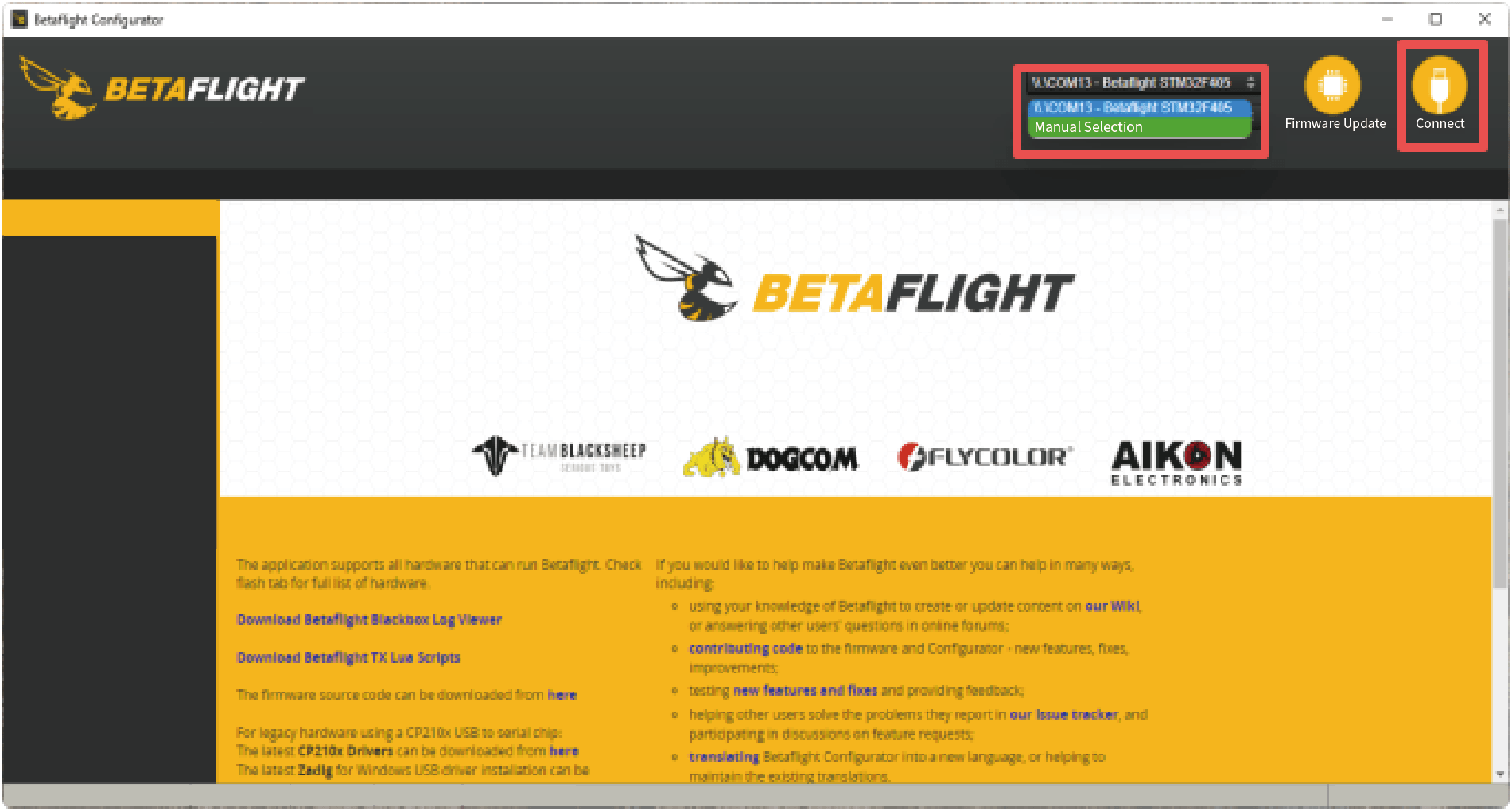
2. Configure the flight controller via the web page https://app.betaflight.com. If your page cannot locate the flight controller, refer to the method shown in the image below.
S30 figure 06

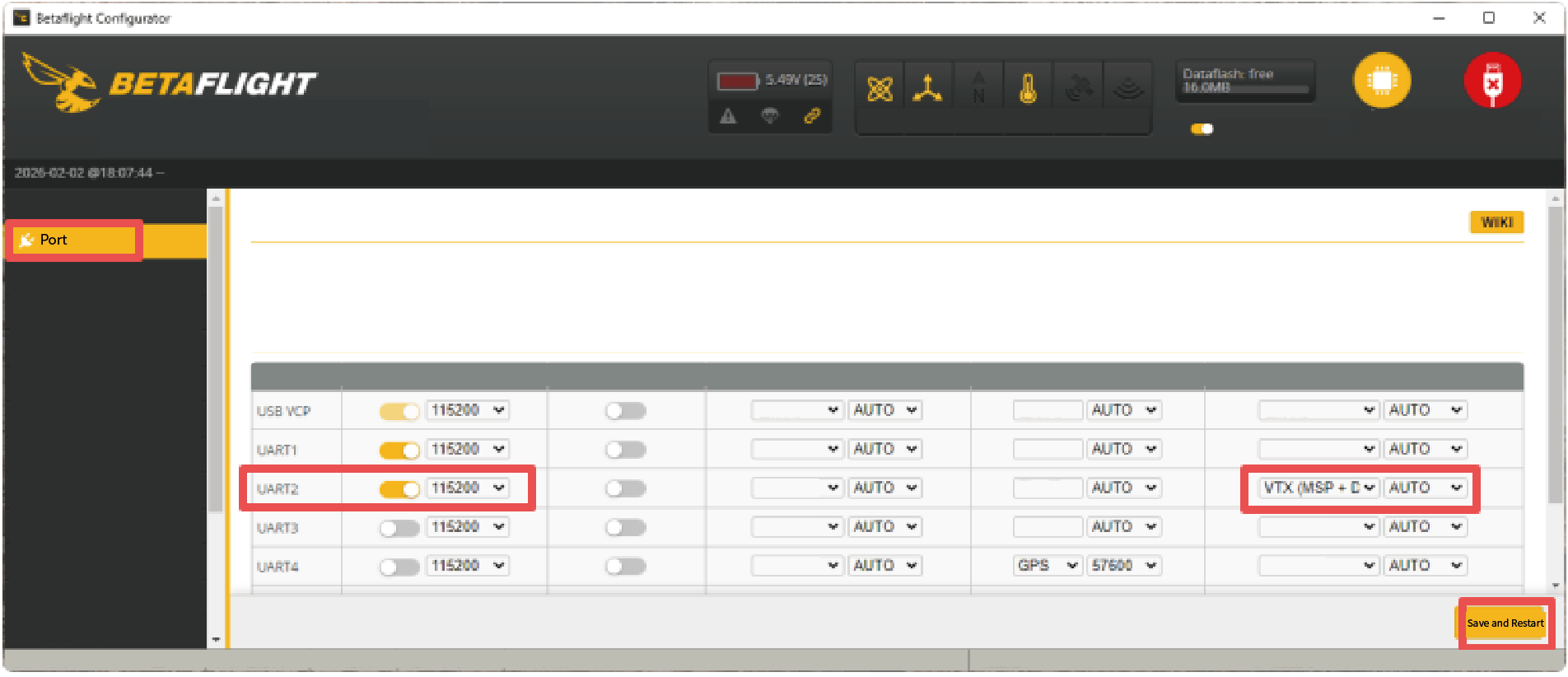
3. Connect the flight controller using Betaflight Configurator and select any serial port as the MSP display interface (UART2 is used as an example in the figure below).
S30 figure 07

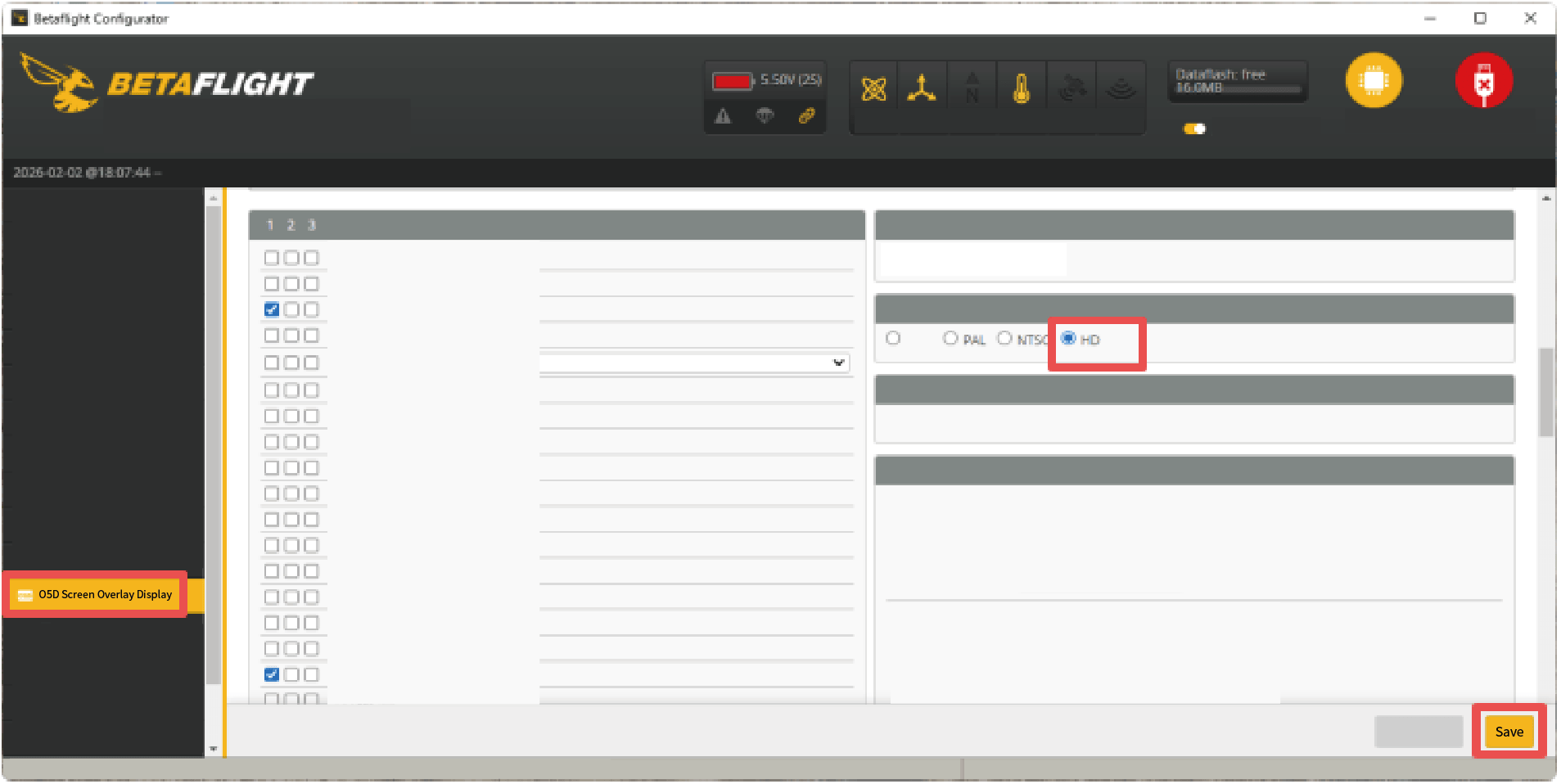
Save and restart the flight controller to complete the MSP OSD output configuration (the current interface font only supports HD video formats).
S30 figure 08

INAV Output Msp Osd Settings

1. Connect the flight controller’s relevant signals to the VTX.

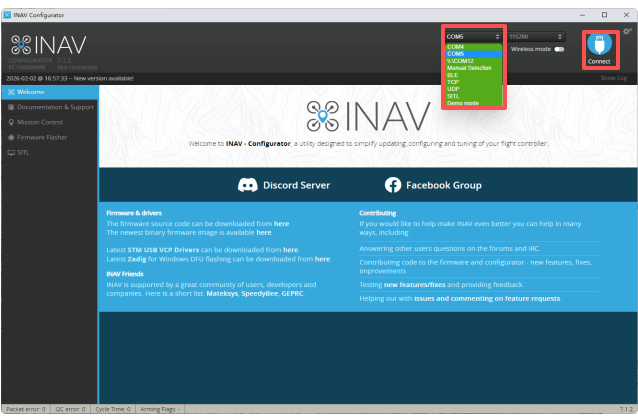
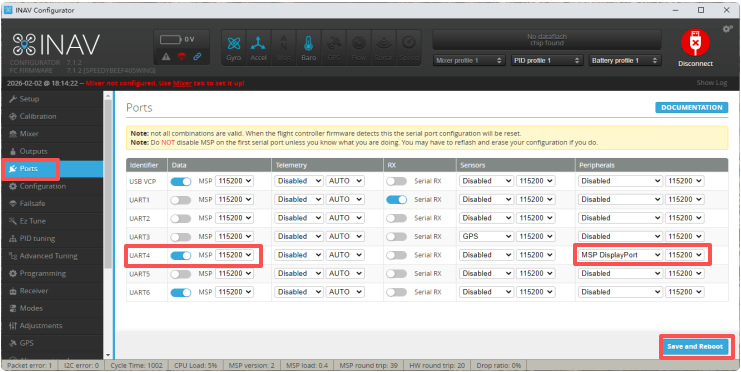
2. Connect the flight controller via INAV Configurator and select any serial port as the MSP display interface (UART4 is used as an example below).
S30 figure 09
S30 figure 10

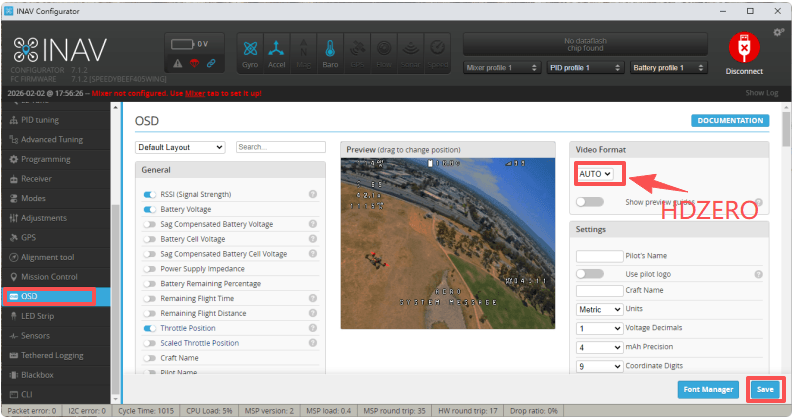
Save and restart the flight controller to complete the MSP OSD output configuration (the current interface font only supports HDZERO video format).
S30 figure 11

LED Indicators

Status
Description
Unpaired state
The red LED lights up constantly on both the Air Unit and Ground Unit.
Binding
The dual-color LED flashes on both the Air Unit and Ground Unit.
Binding Complete
The green LED lights up constantly on both the Air Unit and Ground Unit.

Disclaimer

All specifications and interfaces are subject to change. Always verify operating limits before use.

Contact

Please let us know your requirements, and we will respond to you within one business day.

Email
Phone
Message

Get the Price today!

Scroll to Top